
 13 July 2026
 Share
Share
1

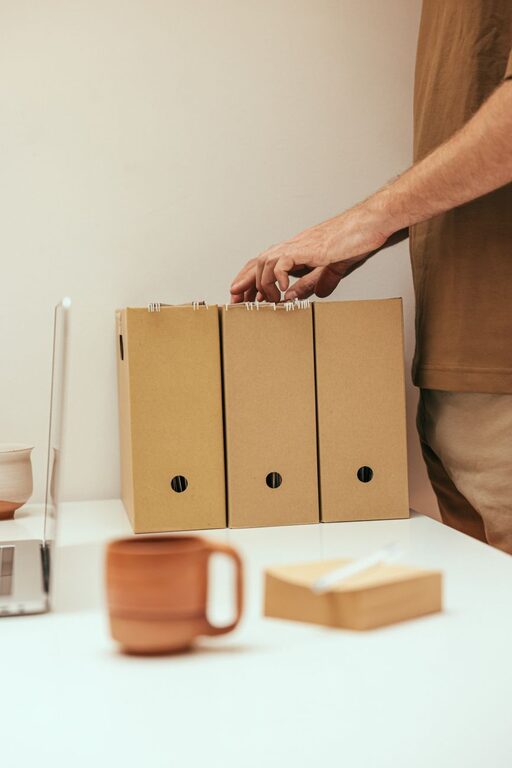
Organizing files on your computer is essential for maintaining a clutter-free digital workspace, improving productivity, and saving time. Whether you use your computer for work, school, or personal projects, having a clear system for storing and managing files can make all the difference. In this post, we’ll explore practical tips and strategies to help you organize your files efficiently.
Before diving into the “how,” it’s important to understand the benefits of organizing your files:
– Saves time: Quickly find what you need without endless searching.
– Improves productivity: A tidy digital space helps you stay focused.
– Prevents data loss: Better organization reduces the chance of accidentally deleting or losing important files.
– Reduces stress: Clear folders and files make it easier to manage your tasks.
Now, let’s look at actionable steps to achieve an organized file system.
One of the most effective ways to keep files organized is by setting up a clear folder hierarchy.
– Begin with broad categories such as Work, Personal, School, or Projects.
– Inside each broad folder, create subfolders for specific topics or tasks (e.g., Work > Reports, Work > Meetings, Personal > Photos).
– Choose clear and descriptive folder names.
– Avoid vague terms like “Miscellaneous” or “Stuff” which can lead to clutter.
– Keep folder names brief but informative.
File names should allow you to identify the content at a glance.
– Include dates in a consistent format (e.g., YYYY-MM-DD) to track versions or timelines.
– Use keywords that reflect the file’s content (e.g., “ProjectProposal_ClientA_2024-06-01”).
– Avoid using spaces or special characters; instead, use underscores (_) or hyphens (-) for readability.
Over time, files accumulate, including duplicates and outdated versions.
– Set a schedule (weekly or monthly) to review and delete files you no longer need.
– Empty your recycle bin or trash regularly to free up space.
– Consider using disk cleanup tools to identify large or unused files.
Backing up your files is a critical part of organization and security.
– Use cloud services like Google Drive, Dropbox, or OneDrive to store and access files from anywhere.
– Organize cloud storage with the same folder and naming structure as your local files for consistency.
– Set up automatic backups to prevent data loss due to hardware failure.
Some operating systems, such as macOS and Windows, allow you to tag files or add metadata.
– Use tags to group related files across different folders (e.g., “Urgent,” “Review,” “Client A”).
– Metadata can help with file searching and filtering later.
If you work with certain files or folders often, create shortcuts or add them to your “Favorites” or “Quick Access” area.
– This saves time navigating through folders.
– Make sure the actual files remain organized in the main folder system.
Downloads folders and desktops tend to become cluttered easily.
– Immediately sort downloaded files into their proper folders after use.
– Avoid storing files permanently on the desktop; keep it clean to reduce distractions.
– Create a “To Sort” folder to temporarily hold files you haven’t yet organized, and review it regularly.
Several tools can help automate and simplify file organization.
– File explorers with sorting and filtering options.
– Duplicate file finders to detect and remove copies.
– Automated tools that move or rename files based on rules you define.
Large files can slow down your system and occupy significant storage space.
– Compress files when possible, especially for sharing or archiving.
– Delete old versions or backups that are no longer needed.
– Monitor storage usage to avoid running out of space.
Organizing files on your computer doesn’t have to be a daunting task. By creating a logical folder structure, using clear naming conventions, regularly cleaning up, and taking advantage of modern tools like cloud storage and tagging, you can maintain a tidy, efficient digital workspace. Consistency is key — invest a little time upfront, and you’ll save hours searching for files down the road.
Start with small changes today, and soon managing your files will become second nature. Happy organizing!
